Pages

Showing posts with label tips. Show all posts

Thursday, November 11, 2010

Ubuntu: How to remove the user name in top panel


If you want to Remove the user name in top panel please type the following command in terminal

gconftool -s /system/indicator/me/display --type int 0

If you want to restore the user name in top panel

gconftool -s /system/indicator/me/display --type int 1

If you like your real name( in about me) in top panel

gconftool -s /system/indicator/me/display --type int 2


Before remove the user name in panel


After remove the user name

Tuesday, November 2, 2010

Ubuntu: How to change drive label via terminal

First install the following applications.

sudo apt-get ntfsprogs

Then type the following command and note the drive for change the name.

sudo fdisk -l


sudo ntfslabel /dev/sda7 [name ]

For example one drive name is soft

Before change the drive name


sudo ntfslabel /dev/sda7 software

Wednesday, September 15, 2010

Ubuntu: How to take screenshot via terminal

In ubuntu, a simple and open source programe imagmagick for taking screenshot via terminal.

Type the following and install the application

sudo apt-get install imagemagick


Then

import xxxxx.png, here xxxxx is filename as you like.

Now a full screen picture.


Selected area picture

Sunday, August 29, 2010

Ubuntu: How to change window key to ubuntu key

Now, change window key to ubuntu key, it is simple and easy way.

Type the following in terminal

gconftool-2 --set /apps/metacity/global_keybindings/panel_main_menu --type string "Super_L"


The second method type Alt+F2, then type 'gconf-editor' press ok

Navigate

apps->metacity->global_keybindings-> . Find 'panel_main_menu' on right side. Press right click on panel_main_menu', select edit key and type 'Super_L', then press ok.

Saturday, August 7, 2010

Ubuntu: A easy way to open a file system

Here is a simple way to open a file system.

Now press '/' key in the desktop, the following window is open


Type the file path in Location. for example type /etc/default/ in the location


Then press open button, the location is opened

Friday, August 6, 2010

Ubuntu: How to create launcher to a website

Now here is the tutorials for create desktop launcher for a special website instead of open the website from web browser.

In terminal type the following lines

sudo apt-get install prism

Now launch the program go to

Applications->internet->prism


Then type the favourite website name in url section.


Check Show status messages and progress

And check the desktop under create desktops. Choose favourite icon under icon section. Then press ok


Now the right click on launcher, select properties->permissions


Check allow executing file as program under execute.

Then press the close button.

Monday, June 21, 2010

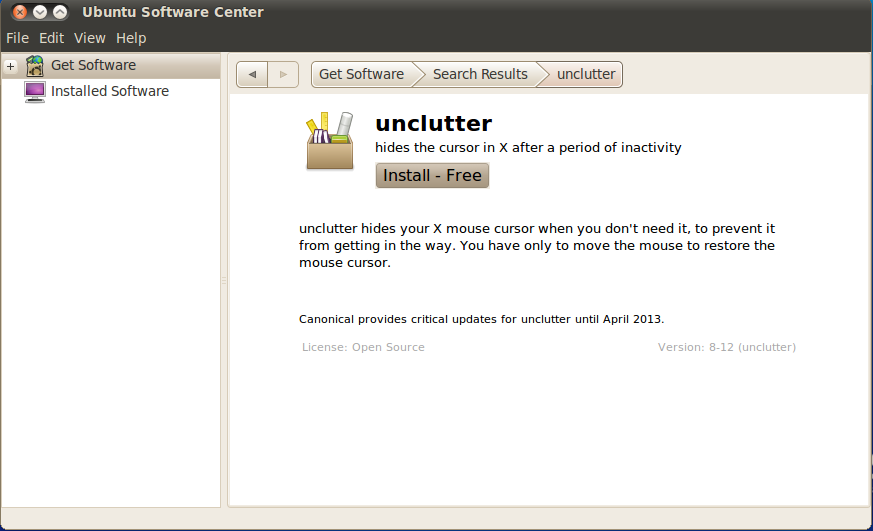
Ubuntu: Auto hide cursor after 5 seconds

Here is the tutorials for how to hide the cursor after 5 seconds

Now go to ubuntu software centre and search the programme 'Unclutter' and install it.

Applications->ubuntu software centre


For execute the programme press 'Alt+F2' . Now open the window and type the 'unclutter' in command box then press run


Restart the computer, the function is working properly.

Monday, June 14, 2010

Ubuntu: How to convert ogv to avi

Here is the tutorial for how to convert ogv format to avi format, it is used for upload a video to youtube.

In terminal type the following command

mencoder ram.ogv -o ram.avi -oac mp3lame -lameopts fast:preset=standard -ovc lavc -lavcopts vcodec=mpeg4:vbitrate=4000

ram.ogv is a original video format and ram.avi is converted format


Tuesday, June 8, 2010

Ubuntu: Create a shortcut for opening filesystem

Now tutorials for create a shortcut for opening filesystem. Press the right click on desktop in free space and select Create Launcher


Type 'File system' in Name section.

In Command section type 'nautilus /' without quotas Then press ok. Now create a short on desktop.Change the icon press icon section and select icons from the list of files


Select the launcher and drag to top panel.


Now press the icon the filesystem is open

Wednesday, May 12, 2010

Ubuntu: How to enable Ctrl+alt+backspace

In defaut the ctrl+alt+backspace has disabled from ubuntu 9.04 versions onwards.Enabling the features the following steps are used.

1. Goes to System->Preferences->keyboard

The following screen will be opened


then select 'Layouts'


Select 'options'


Then select 'key sequen ce to kill the x server' and tick the 'control+alt+backspace' box


And close the window. Now press the Ctrl+alt+backspace the x server restarted

Ubuntu: how to move maximum,minimum, close button to right side

In ubuntu 10.04, the minimum,maximum,close button in window is left side top corner, which is default. Now we can change the minimum,maximum,close button to right side top corner.


In terminal, type the following line

gconftool-2 --set '/apps/metacity/general/button_layout' --type string ':minimize,maximize,close'

The window buttons are goes to right side top corner


For return to default, type the following line in terminal

gconftool-2 --set '/apps/metacity/general/button_layout' --type string 'minimize,maximize,close:'

Tuesday, May 11, 2010

Ubuntu: How to change the nautilus location bar to text mode

This is tip for how to change the nautlius location bar to text mode.


1. Type the following in terminal

gconftool-2 --type=Boolean --set /apps/nautilus/preferences/always_use_location_entry true


after the change


The second method thro' gconf-editor

Press alt+f2


then press run button go to

apps->nautilus->preference and tik always_use_location_entry in right side window.